
Content Authoring Tool
Ask questions inside the video,
and see exactly where learners stopped.
Turn the videos and documents you already have into interactive training content by adding subtitles, explanations and quizzes on top. Drop-off curves by segment and correct-answer rates by question can be checked learner by learner, so the records serve directly as evidence of completion for statutory mandatory training. Engineer Story supplies and operates the tool, and the content made here flows straight into LMS courses and learning paths.
Use what you already have
Upload YouTube links, MP4 files and PDF or PPTX documents as they are, and weave them into one piece of learning content.
Ask while they watch
The video stops at set points and a quiz or survey appears. Playback resumes only after an answer.
Know who watched to the end
Drop-off by segment, correct-answer rates and completion rates build up for every piece of content and inform the design of the next course.
The Authoring Tool in numbers · as of Nov 2026
WHY
More and more video, yet learning goes unverified
There is already plenty of material. What is missing is a way to get people to watch it to the end and to record that they did.
Production is tied to outside vendors
Even a small fix to one piece of content goes through a production company, and cost and schedule grow with it. The people who know the subject cannot update it themselves.
It only shows
Sharing a video link leaves learning to the viewer's goodwill. With free skipping and rewinding, there is no way to know whether anyone watched to the end.
Nothing is recorded
Apart from view counts, nothing remains. Without knowing where people dropped off or what they got wrong, the next course is designed by guesswork.
Evidence lives elsewhere
Statutory mandatory training must prove completion. When viewing records and assessment results are not kept in one place, they have to be gathered by hand for every review.
OVERVIEW
Product overview and two flows
Creators and learners see different screens. Authors build content on a timeline, and learners watch it as a single video.
Creation flow
Choose landscape 16:9 or portrait short-form 9:16. Saving and publishing are separate, so content can stay in draft.
Learning flow
Even when several clips are joined, learners see a single piece, and the progress bar shows only the actual learning length.
FUNCTION MAP
Functions at a glance
| Area | Main functions |
|---|---|
| Content creation | Choose landscape 16:9 or portrait short-form 9:16, with a warning when a source has a different ratio |
| Video clips | YouTube link or MP4 upload, with joined clips played back continuously as one piece |
| Segment editing | Start and end points set per clip, by dragging or by typing seconds directly |
| Large uploads | Large MP4 files split and uploaded automatically with a progress display, and clips with missing sources flagged and cleaned up in one go |
| Screen elements | Text, images, icons and links placed on screen, each with its own start and end time |
| Click actions | None / open link in a new window / explanation pop-up, with the video paused automatically while the pop-up is open |
| Quizzes | Single choice, multiple choice, true/false and short answer, with points, feedback for right and wrong answers, and up to 5 retries |
| Surveys | Choice, rating and free text, a custom completion message, and free-text answers shown verbatim in the statistics |
| Playback control | Unified progress bar or native YouTube and browser controls, with 3 navigation levels |
| Subtitles | VTT uploads per language with CC switching in the player, and YouTube auto-captions turned off |
| Document mode | PDF upload, PPTX converted to PDF on the server automatically, elements and questions placed page by page |
| Publishing · sharing | Publishing creates a public URL, the iframe embed code can be copied, and unpublishing makes it private again |
| Undo | Undo and redo for the last 50 steps, return to a specific point in the edit history, restored after a refresh |
| Statistics | Views, viewers, average watch rate, completion rate and responses, plus drop-off by segment and progress and scores by learner |
PROCESS
Five steps to one piece of content
No production request needed: the person who knows the subject best makes and fixes it the same day.
Create content
Choose landscape or portrait short-form and enter a title.
Upload sources
Put YouTube links or MP4 files on the timeline, or upload PDF or PPTX if there is no video.
Trim segments
Keep only the parts you need and join several clips into one piece.
Place elements and questions
Add explanations and links on screen, and put quizzes or surveys at the moments you want to ask.
Check and publish
Check the learner view in preview, then publish to get a public URL and embed code.
INTERACTION
Ask while they watch, and continue only after an answer
Playback stops at the set point and the question appears in the middle of the screen. Once answered, playback resumes automatically.
Quizzes — scored questions
- Single choice · multiple choice · true/false · short answer
- Points and feedback for right and wrong answers set per question
- Up to 5 retries, with the last attempt counted in the statistics
Surveys — questions that gather opinions
- Choice · rating · free text
- A custom message shown after answering
- Free-text answers shown verbatim in the statistics
Explanations and links
- Clicking an element opens an explanation card and pauses the video automatically
- Explanation text supports bold, lists and links
- Link elements open the set address in a new window
LEARNING CONTROL
Making sure they watch to the end
For courses where proof of completion matters, such as statutory mandatory training, the way content is played must itself be controllable.
Unified progress bar
Shows the actual learning length after trimmed segments are combined, and lets learners move across clips. It can be switched to native YouTube or browser controls.
No skipping ahead
This is the default. Learners cannot jump to parts they have not yet watched, but can go back over parts they have seen. Depending on the course, switch to free navigation or navigation locked.
Multilingual subtitles
Upload a VTT file per language, and learners switch or turn subtitles off with the player's CC button. YouTube auto-captions can also be turned off on the learner screen.
DOCUMENT MODE
Documents work the same way
Reuse material you already made
Turn regulations, manuals and company notices already made in PPT or PDF into learning content as they are, without remaking them. Uploaded PPTX files are converted to PDF on the server automatically.
Placed page by page
Each element is given a page number and shows only on that page. Text, images, quizzes and explanation pop-ups behave exactly as in video mode, and page reach is recorded in the same table.
SCREENS
Authoring screen and learner screen
How the creation screen and the learning screen are laid out (Korean interface).
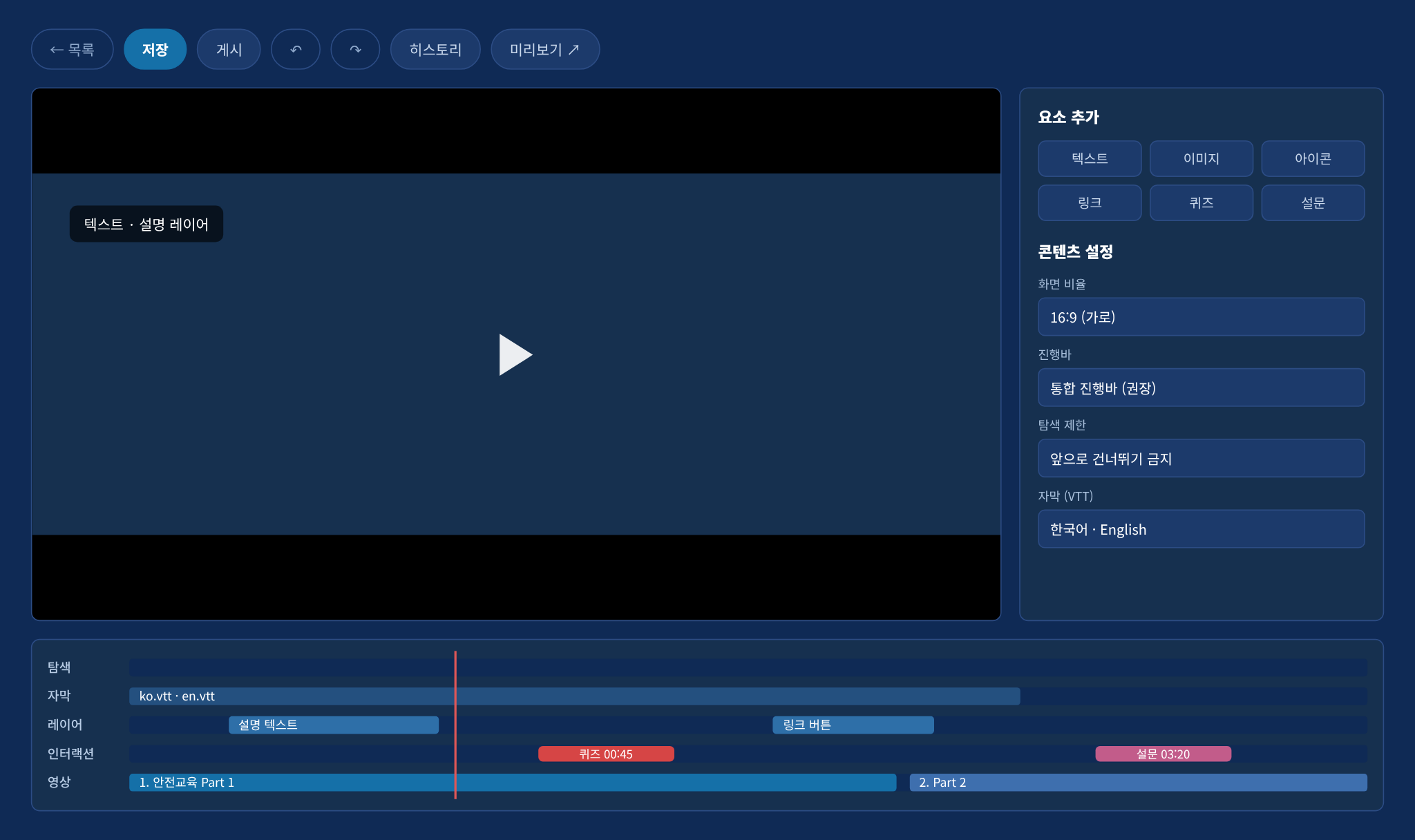
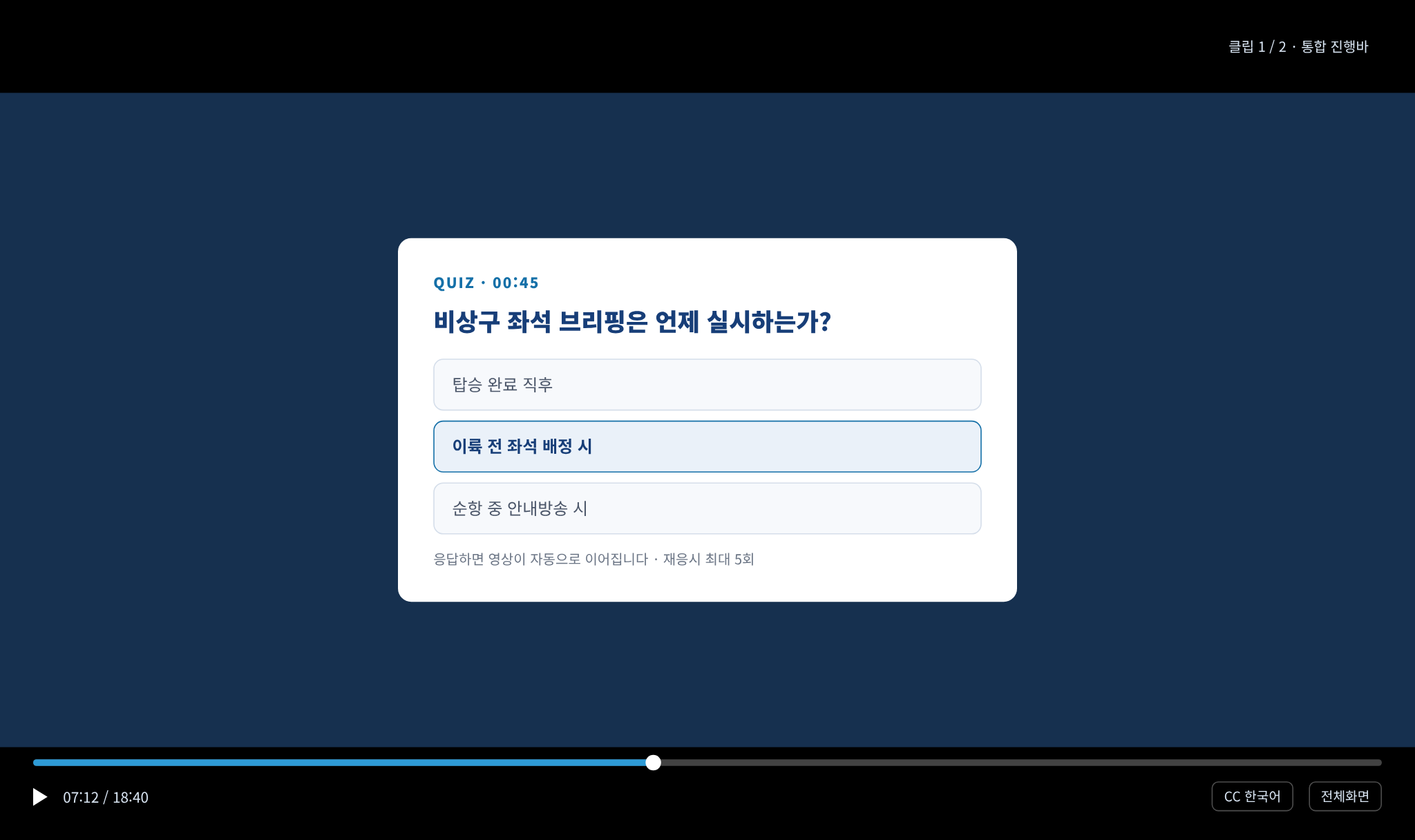
The screens are diagrams made to explain the features.
ANALYTICS
Not just who watched, but how they watched
Unlike sharing a video, where only view counts remain, where people stopped and what they got wrong builds up for every piece of content.
Overall summary
| Total content | Drafts and published content together |
|---|---|
| Total views | Number of times playback started |
| Unique viewers | Number of people, without duplicates |
| Quiz · survey responses | Number of submitted responses |
The per-content table also shows views, viewers, play conversion, average watch rate, completion rate, responses and latest activity.
Details per content
- Viewers by segment — a curve that shows where people dropped off
- Quiz correct-answer rates, survey response distribution and free-text answers
- Page reach and link clicks for document content
- Learner list — identifier · device · progress · score · latest viewing
- Completion counted as watching 90% or more of the content
Authors' previews are not counted in the statistics.
RELIABILITY
So no work is lost
50 undo steps
Undo and redo reverse what you just did. Even an element deleted by mistake comes back as it was.
Edit history restore
Go straight back to any point in the edit history, and the work is restored even when the same content is reopened after a refresh.
Draft protection
Drafts are visible only to their author. Unpublishing closes the public URL and makes the content private again.
WITH LMS
Create with the Authoring Tool, run with the LMS
One line from content to completion
- Authoring Tool
- Adds subtitles, explanations and quizzes on top of videos and documents to make a piece of learning content, with a public URL and embed code
- LMS
- Bundles that content into courses and learning paths, assigns it to learners, and manages progress, assessments, certificates and statistics on one screen
- Used together
- Creating and running training stay connected. When a regulation changes, fix only the affected segment and questions and put them back in the same place
The Authoring Tool can also be used on its own. With the public URL and iframe embed code, content drops straight into a company portal or an existing training system.
Five steps from creating content to publishing it. No production request is needed: the person in charge makes it, fixes it the same day and publishes it again.
See the Learning Management System (LMS) page for LMS details.
Easy for those who create. To the end for those who learn.
Material as it is
YouTube · MP4 · PDF · PPTX
Ask while they watch
7 question types and automatic pause
Watch to the end
Unified progress bar and navigation limits
What remains is a record
Drop-off curves · correct-answer rates · completion rates
WHY ENGINEERSTORY
Checkpoints for adopting a training content authoring tool
Can you start with what you have?
Uploading YouTube links, MP4 files and PDF or PPTX documents as they are gets the first piece out quickly.
Can the business fix it directly?
Content stays current only if the person in charge can fix and republish it the same day, without a production request.
Can you control learning?
Completion means something only with limits on skipping and a pause until each question is answered.
Is verification kept as a record?
Drop-off by segment, correct-answer rates by question, and progress and scores by learner must be kept to serve as evidence.
Does it fit existing systems?
A public URL and embed code are needed to place content in a company portal or a learning management system.
Does support continue into operation?
If you only receive a tool, operation stalls. You need a partner who knows how training is run.
CONTACT
Talk to us about adoption
- Website
- www.engineerstory.kr
- Phone
- +82 10-7229-5786
- engineerstory2018@gmail.com
Engineer Story LC. · Sales lead Byoungjo Min
Rm 612, Mega Tower, 59-9 Magokjungang-ro, Gangseo-gu, Seoul, Republic of Korea