
ES-Proposal · Proposal search · Bid preparation
From finding past proposals
to preparing the next bid
Search your existing proposals and presentation decks for what you need, and use it to prepare a new bid. Request for proposal (RFP) analysis, questions to the client, review of similar material and outline design all happen in one place.
Find proposals by asking
Even without the project name, ask for what you are looking for in a sentence and get the answer together with the source slides.
Analysis with its sources
RFP analysis, draft questions and outlines carry the original page numbers, and AI drafts are checked by the person in charge.
Progress managed per bid
From pre-sales to final submission and the result, the whole preparation of a bid is kept in one place.
ES-Proposal at a glance
Repetitive work in proposal teams
The preparation that repeats before every proposal
Checking several folders to find the presentation deck you need.
Reading the bid notice and retyping the requirements into a table.
Gathering client questions scattered across email and messengers.
Hunting again for existing slides to refer to while building the outline.
ES-Proposal is Engineer Story's bid preparation system, built to handle these four tasks on one screen.
Proposal search
Search for what you need by asking a question
You can type what you are looking for as a question, even if you do not know the exact project name. The results show the answer together with the slides it is based on.
Material from projects that were won is marked ‘Won’ so you can tell it apart.
“Tell me about any projects where we developed training content”
“Find the slides that set out our response strategy for each evaluation criterion”
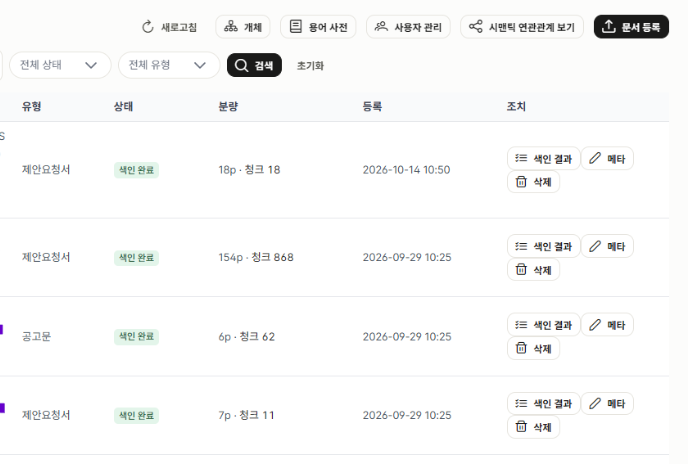
Document registration · management
Registered documents become search material
The text and images of each registered document are analyzed page by page and used for search.
Documents are managed with the project name, client, year, document type and win status, and the document type and win status are shown in the search results.
Processing status is shown under ‘Index management’, and failed jobs can be run again.
Bid preparation
Analysis, questions and outline, with sources
RFP analysis
See project terms and requirements in a table
The RFP is analyzed and organized item by item: project period, budget, contract method, evaluation method, requirements and schedule.
Each result shows its source page so you can compare it with the original. Items without a source found are marked ‘Source to be checked’.
Questions to the client
Points to confirm, organized as draft questions
Anything that needs further confirmation during RFP analysis is written up as a draft question and listed with the related original pages.
Drafts written by AI are marked ‘To be checked’. Only questions reviewed and confirmed by the person in charge go into the question sheet.
Similar material · outline design
Build the proposal outline with similar material at hand
Existing material is shown in two groups, ‘Same project’ and ‘Similar topic’. Pick what you need and use it in building the outline.
Each section of the outline shows its points, the related requirements and the slides to use. The finished outline can be downloaded as an Excel file.
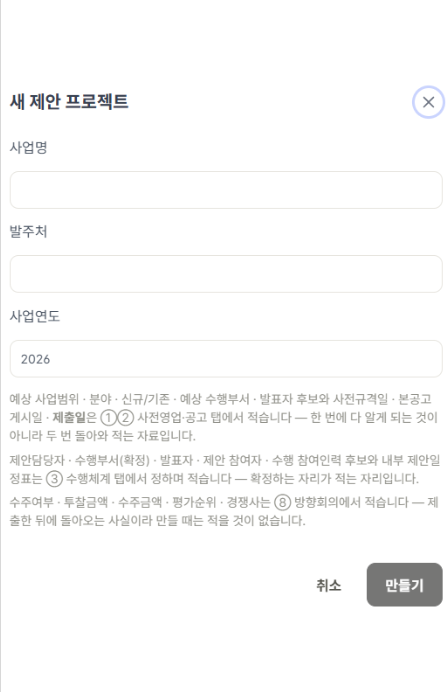
Bid progress management
Manage the preparation and result of each bid
| Stage | What happens |
|---|---|
| ① Pre-sales · notice | Register pre-sales information and the notice and submission schedule. |
| ② RFP analysis | Analyze the RFP's requirements, key dates and risk factors. |
| ③ Follow-up questions | Review what to confirm with the client and write the question sheet. |
| ④ Proposal analysis | Review similar material, with presentation decks and proposals kept apart, and build the outline. |
| ⑤ Final submission · result | Register the final submission and record the win status, bid and award amounts, and evaluation ranking. |
Review · administration
Checking the original and managing user permissions
Source checks
The source page of each analysis result is shown. You can compare the content with the original side by side.
Review status
Analysis items without a confirmed source are marked ‘Source to be checked’, and AI draft questions are marked ‘To be checked’.
Deletion checks
When a document is deleted, the files deleted with it are listed and the user must confirm.
Reason for not bidding
A bid can be saved as not entered only after a reason is given.
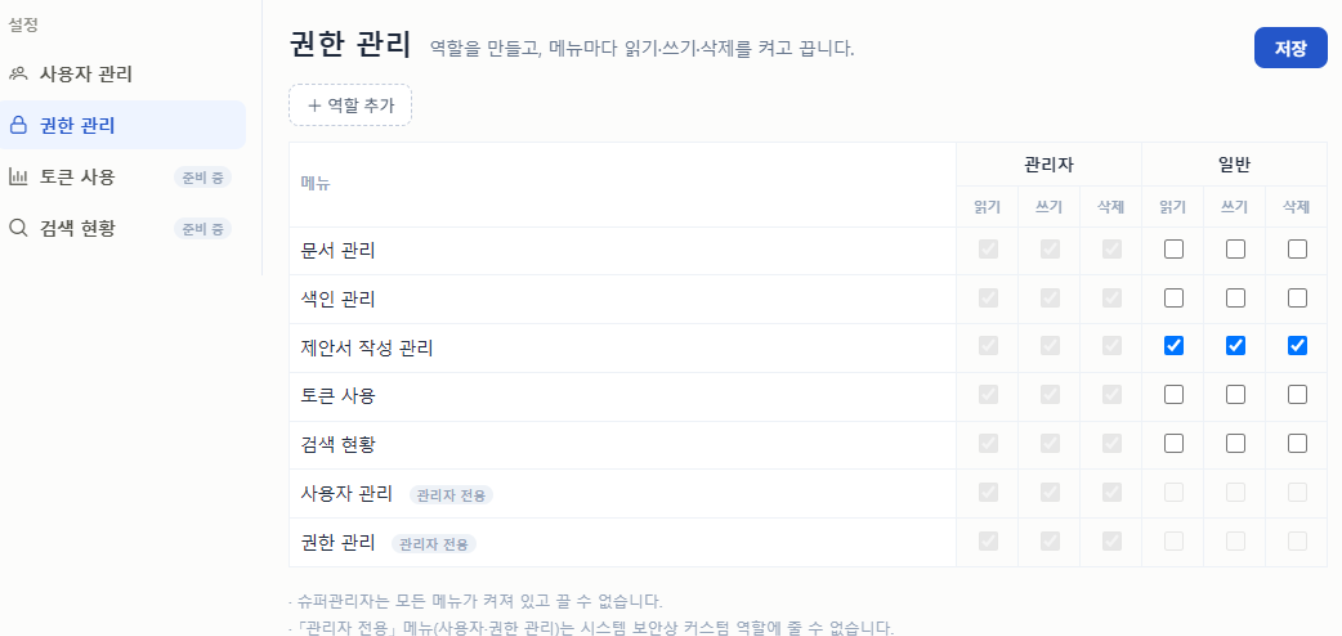
Permissions per menu
Read, write and delete permissions are set per menu according to user role.
Term dictionary
Register terms to search together, such as ‘short-form’, ‘Shorts’ and ‘Reels’, so material using different wording is found too.
AI drafts. People confirm.
Fast search
Past proposals, with one question
Analysis with sources
An original page for every item
Human confirmation
Only confirmed questions go out
A growing bid record
Down to win status and ranking
WHY ENGINEERSTORY
Checkpoints for adopting a bid preparation system
Material found by content
Past proposals get reused only when they can be found by what is on the slides, not by file name.
An original source for every answer
AI answers and analyses need the original page attached so the person in charge can check them at once.
Material tagged with win status
Document type, year and win status must sit together so you can choose what to refer to.
A check step for AI drafts
Only questions confirmed by the person in charge should go out to the client.
Permission and deletion control
Proposals are trade secrets. Permissions per menu and deletion checks are a must.
Bid results that build up
Wins, losses, bids not entered and rankings must be kept to inform the next bid.
CONTACT
Talk to us about adoption
- Website
- www.engineerstory.kr
- Phone
- +82 10-7229-5786
- engineerstory2018@gmail.com
Engineer Story LC. · Sales lead Byoungjo Min
Rm 612, Mega Tower, 59-9 Magokjungang-ro, Gangseo-gu, Seoul, Republic of Korea
Project names, organization names and file names shown on screen have been replaced with examples.